The GitHub MCP server is available to all GitHub users regardless of plan type. However, specific tools within the MCP server inherit the same access requirements as their corresponding GitHub features. If a feature requires a paid GitHub or Copilot license, the equivalent MCP tool will require the same subscription. For example, tools that interact with Copilotクラウドエージェント require a paid Copilot license.
GitHub MCP サーバーについて
GitHub MCP サーバーとは、GitHub によって提供および管理されるモデル コンテキスト プロトコル (MCP) サーバーです。 MCP を使うと、AI 機能を他のツールやサービスと統合し、コンテキスト対応の AI 支援を提供することで開発エクスペリエンスを強化できます。
GitHub MCP サーバーの詳細内容と MCP の概要については、「モデル コンテキスト プロトコル (MCP) について」を参照してください。
Prerequisites
- A GitHub account.
- Visual Studio Code.
- The GitHub MCP server, configured in your editor. See Setting up the GitHub MCP Server.
- Copilot ビジネス サービス または Copilot Enterprise プランを利用する organization または Enterprise のメンバーである場合、Copilot で MCP を使うには、"Copilot の MCP サーバー" ポリシーを有効にする必要があります。
Using the GitHub MCP server in Visual Studio Code
The GitHub MCP server enables you to perform a wide range of actions on GitHub, via Copilot Chat in Visual Studio Code.
- Visual Studio Code のタイトル バーの アイコンをクリックして、Copilot Chat を開きます。
-
Copilot Chat ボックスで、**エージェント**のドロップダウン メニューから [エージェント] を選択します。 - To see the available actions, in the Copilot Chat box, click the Configure tools icon.
- If you expand the GitHub MCP server entry, you will see a list of available tools.
- In the Copilot Chat box, type a command or question related to the action you want to perform, and press Enter.
- For example, you can ask the GitHub MCP server to create a new issue, list pull requests, or retrieve repository information.
- The GitHub MCP server will process your request and provide a response in the chat interface.
- In the Copilot Chat box, you may be asked to give additional permissions or provide more information to complete the action.
- Follow the prompts to complete the action.
トラブルシューティング
GitHub MCP サーバーの使用中に問題が発生した場合は、いくつかの一般的なトラブルシューティング手順を実行できます。
承認の問題
MCP サーバーの認可で問題が発生した場合は、次のことを確認します。
- 任意の IDE で GitHub にサインインしています。
personal access token (PAT) で認証を行っている場合は、次のことを確認します。
- GitHub の PAT が有効であり、実行するアクションに必要なスコープを持っています。
- 正しい PAT を入力しました。
Copilot エージェント モードの問題
Copilot Chat エージェント モードで問題が発生した場合は、次のことを確認します。
- Copilot Chat ボックスで適切なエージェントを選択しています。
- IDE で MCP サーバーを正しく構成しました。
- 実行しようとしているアクションを実行するために必要なアクセス許可があります。
プッシュ保護ブロック
GitHub MCP サーバーを使っており、プッシュ保護により公開しても安全だと思われるシークレットがブロックされている場合は、シークレットを許可する理由を指定してブロックをバイパスできる可能性があります。 「プッシュ保護と GitHub MCP サーバーの使用」を参照してください。
一般的なヒント
GitHub MCP サーバーで他の問題が発生する場合のトラブルシューティングに役立つ一般的なヒントを次に示します。
- MCP サーバーの出力ログでエラー メッセージを調べます。
- MCP サーバーをローカル環境で実行している場合は、ローカル環境が Docker コンテナーの実行用に正しく設定されていることを確認します。
- MCP サーバーまたは IDE を再起動してみます。
GitHub MCP サーバーについて
GitHub MCP サーバーとは、GitHub によって提供および管理されるモデル コンテキスト プロトコル (MCP) サーバーです。 MCP を使うと、AI 機能を他のツールやサービスと統合し、コンテキスト対応の AI 支援を提供することで開発エクスペリエンスを強化できます。
GitHub MCP サーバーの詳細内容と MCP の概要については、「モデル コンテキスト プロトコル (MCP) について」を参照してください。
Prerequisites
- Access to Copilot. 「GitHub Copilot とは」をご覧ください。
- Visual Studio version 17.14 or later. For more information on installing Visual Studio, see the Visual Studio downloads page.
- The GitHub MCP server, configured in your editor. See Setting up the GitHub MCP Server.
- Sign in to GitHub from Visual Studio.
- Copilot ビジネス サービス または Copilot Enterprise プランを利用する organization または Enterprise のメンバーである場合、Copilot で MCP を使うには、"Copilot の MCP サーバー" ポリシーを有効にする必要があります。
Using the GitHub MCP server in Visual Studio
The GitHub MCP server enables you to perform a wide range of actions on GitHub, via Copilot Chat in Visual Studio.
- In the Visual Studio menu bar, click View, then click GitHub Copilot Chat.
- At the bottom of the chat panel, select Agent from the mode dropdown.
- In the Copilot Chat window, click the tools icon.
- Under GitHub, you will see a list of available tools.
- In the Copilot Chat box, type a command or question related to the action you want to perform, and press Enter.
- For example, you can ask the GitHub MCP server to create a new issue, list pull requests, or retrieve repository information.
- The GitHub MCP server will process your request and provide a response in the chat interface.
- In the Copilot Chat box, you may be asked to give additional permissions or provide more information to complete the action.
- Follow the prompts to complete the action.
GitHub MCP サーバーについて
GitHub MCP サーバーとは、GitHub によって提供および管理されるモデル コンテキスト プロトコル (MCP) サーバーです。 MCP を使うと、AI 機能を他のツールやサービスと統合し、コンテキスト対応の AI 支援を提供することで開発エクスペリエンスを強化できます。
GitHub MCP サーバーの詳細内容と MCP の概要については、「モデル コンテキスト プロトコル (MCP) について」を参照してください。
Prerequisites
-
Access to Copilot. 「GitHub Copilot とは」をご覧ください。
-
A compatible JetBrains IDE. GitHub Copilot is compatible with the following IDEs:
- IntelliJ IDEA (Ultimate、Community、Educational)
- Android Studio
- AppCode
- CLion
- Code With Me ゲスト
- DataGrip
- DataSpell
- GoLand
- JetBrains クライアント
- MPS
- PhpStorm
- PyCharm (Professional、Community、Educational)
- Rider
- RubyMine
- RustRover
- WebStorm
- Writerside
ダウンロードするには、JetBrains IDE のツール ファインダーを参照してください。
-
**GitHub Copilot 拡張機能の最新バージョン**。 JetBrains Marketplace で「[GitHub Copilot プラグイン](https://plugins.jetbrains.com/plugin/17718-github-copilot?ref_product=copilot&ref_type=engagement&ref_style=text)」を確認してください。 インストール手順については、「[AUTOTITLE](/copilot/configuring-github-copilot/installing-the-github-copilot-extension-in-your-environment)」を参照してください。 -
**JetBrains IDE で GitHub にサインインします**。 認証手順については、「[AUTOTITLE](/copilot/configuring-github-copilot/installing-the-github-copilot-extension-in-your-environment?tool=jetbrains#installing-the-github-copilot-plugin-in-your-jetbrains-ide)」を参照してください。 -
The GitHub MCP server, configured in your editor. See Setting up the GitHub MCP Server.
-
Copilot ビジネス サービス または Copilot Enterprise プランを利用する organization または Enterprise のメンバーである場合、Copilot で MCP を使うには、"Copilot の MCP サーバー" ポリシーを有効にする必要があります。
Using the GitHub MCP server in JetBrains IDEs
The GitHub MCP server enables you to perform a wide range of actions on GitHub, via Copilot Chat in JetBrains IDEs.
-
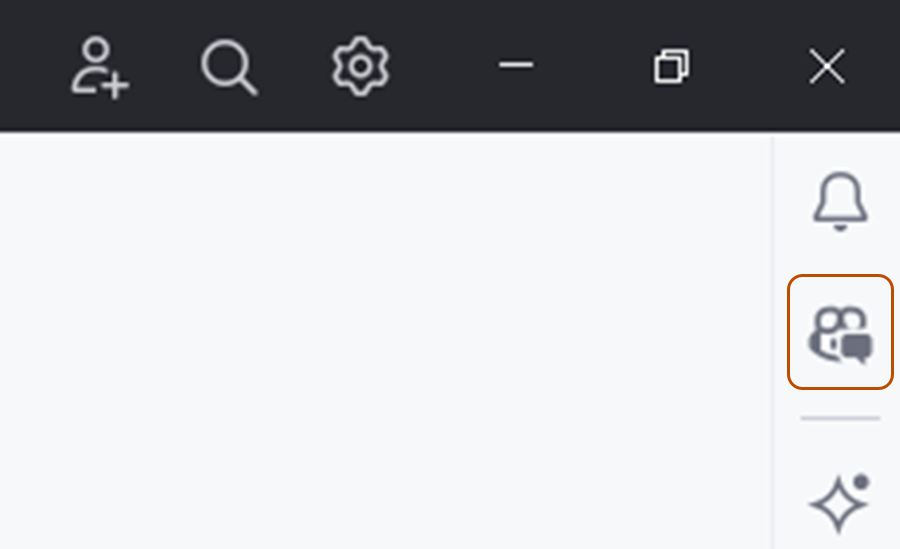
Open the Copilot Chat window by clicking the GitHub Copilot Chat icon at the right side of the JetBrains IDE window.
-
At the top of the chat panel, click the Agent tab.
-
To see the available actions, in the Copilot Chat box, click the tools icon.
- You will see a list of available actions from the GitHub MCP server.
-
In the Copilot Chat box, type a command or question related to the action you want to perform, and press Enter.
- For example, you can ask the GitHub MCP server to create a new issue, list pull requests, or retrieve repository information.
-
The GitHub MCP server will process your request and provide a response in the chat interface.
- In the Copilot Chat box, you may be asked to give additional permissions or provide more information to complete the action.
-
Follow the prompts to complete the action.

トラブルシューティング
GitHub MCP サーバーの使用中に問題が発生した場合は、いくつかの一般的なトラブルシューティング手順を実行できます。
承認の問題
MCP サーバーの認可で問題が発生した場合は、次のことを確認します。
- 任意の IDE で GitHub にサインインしています。
personal access token (PAT) で認証を行っている場合は、次のことを確認します。
- GitHub の PAT が有効であり、実行するアクションに必要なスコープを持っています。
- 正しい PAT を入力しました。
Copilot エージェント モードの問題
Copilot Chat エージェント モードで問題が発生した場合は、次のことを確認します。
- Copilot Chat ボックスで適切なエージェントを選択しています。
- IDE で MCP サーバーを正しく構成しました。
- 実行しようとしているアクションを実行するために必要なアクセス許可があります。
プッシュ保護ブロック
GitHub MCP サーバーを使っており、プッシュ保護により公開しても安全だと思われるシークレットがブロックされている場合は、シークレットを許可する理由を指定してブロックをバイパスできる可能性があります。 「プッシュ保護と GitHub MCP サーバーの使用」を参照してください。
一般的なヒント
GitHub MCP サーバーで他の問題が発生する場合のトラブルシューティングに役立つ一般的なヒントを次に示します。
- MCP サーバーの出力ログでエラー メッセージを調べます。
- MCP サーバーをローカル環境で実行している場合は、ローカル環境が Docker コンテナーの実行用に正しく設定されていることを確認します。
- MCP サーバーまたは IDE を再起動してみます。
GitHub MCP サーバーについて
GitHub MCP サーバーとは、GitHub によって提供および管理されるモデル コンテキスト プロトコル (MCP) サーバーです。 MCP を使うと、AI 機能を他のツールやサービスと統合し、コンテキスト対応の AI 支援を提供することで開発エクスペリエンスを強化できます。
GitHub MCP サーバーの詳細内容と MCP の概要については、「モデル コンテキスト プロトコル (MCP) について」を参照してください。
Prerequisites
- Access to Copilot. 「GitHub Copilot とは」をご覧ください。
- GitHub Copilot for Xcode extension. See 環境内に GitHub Copilot 拡張機能をインストールする.
- The GitHub MCP server, configured in your editor. See Setting up the GitHub MCP Server.
- Copilot ビジネス サービス または Copilot Enterprise プランを利用する organization または Enterprise のメンバーである場合、Copilot で MCP を使うには、"Copilot の MCP サーバー" ポリシーを有効にする必要があります。
Using the GitHub MCP server in Xcode
The GitHub MCP server enables you to perform a wide range of actions on GitHub, via Copilot Chat in Xcode.
- To open the chat view, click Editor in the menu bar, then click Copilot then Open Chat. Copilot Chat opens in a new window.
- At the bottom of the chat panel, select Agent.
- To see the available actions, in the Copilot Chat box, click the tools icon.
- You will see a list of available actions from the GitHub MCP server.
- In the Copilot Chat box, type a command or question related to the action you want to perform, and press Enter.
- For example, you can ask the GitHub MCP server to create a new issue, list pull requests, or retrieve repository information.
- The GitHub MCP server will process your request and provide a response in the chat interface.
- In the Copilot Chat box, you may be asked to give additional permissions or provide more information to complete the action.
- Follow the prompts to complete the action.
トラブルシューティング
GitHub MCP サーバーの使用中に問題が発生した場合は、いくつかの一般的なトラブルシューティング手順を実行できます。
承認の問題
MCP サーバーの認可で問題が発生した場合は、次のことを確認します。
- 任意の IDE で GitHub にサインインしています。
personal access token (PAT) で認証を行っている場合は、次のことを確認します。
- GitHub の PAT が有効であり、実行するアクションに必要なスコープを持っています。
- 正しい PAT を入力しました。
Copilot エージェント モードの問題
Copilot Chat エージェント モードで問題が発生した場合は、次のことを確認します。
- Copilot Chat ボックスで適切なエージェントを選択しています。
- IDE で MCP サーバーを正しく構成しました。
- 実行しようとしているアクションを実行するために必要なアクセス許可があります。
プッシュ保護ブロック
GitHub MCP サーバーを使っており、プッシュ保護により公開しても安全だと思われるシークレットがブロックされている場合は、シークレットを許可する理由を指定してブロックをバイパスできる可能性があります。 「プッシュ保護と GitHub MCP サーバーの使用」を参照してください。
一般的なヒント
GitHub MCP サーバーで他の問題が発生する場合のトラブルシューティングに役立つ一般的なヒントを次に示します。
- MCP サーバーの出力ログでエラー メッセージを調べます。
- MCP サーバーをローカル環境で実行している場合は、ローカル環境が Docker コンテナーの実行用に正しく設定されていることを確認します。
- MCP サーバーまたは IDE を再起動してみます。
GitHub MCP サーバーについて
GitHub MCP サーバーとは、GitHub によって提供および管理されるモデル コンテキスト プロトコル (MCP) サーバーです。 MCP を使うと、AI 機能を他のツールやサービスと統合し、コンテキスト対応の AI 支援を提供することで開発エクスペリエンスを強化できます。
GitHub MCP サーバーの詳細内容と MCP の概要については、「モデル コンテキスト プロトコル (MCP) について」を参照してください。
Prerequisites
- Copilot へのアクセス権。 「GitHub Copilot とは」をご覧ください。
- Eclipse の互換バージョン。 GitHub Copilot 拡張機能を使うには、Eclipse バージョン 2024-09 以降が必要です。 Eclipse のダウンロード ページを参照してください。
- Copilot ビジネス サービス または Copilot Enterprise プランを利用する organization または Enterprise のメンバーである場合、Copilot で MCP を使うには、"Copilot の MCP サーバー" ポリシーを有効にする必要があります。
- The GitHub MCP server, configured in your editor. See Setting up the GitHub MCP Server.
- Latest version of the GitHub Copilot extension. Download this from the Eclipse Marketplace. For more information, see 環境内に GitHub Copilot 拡張機能をインストールする.
- Sign in to GitHub from Eclipse.
Using the GitHub MCP server in Eclipse
The GitHub MCP server enables you to perform a wide range of actions on GitHub, via Copilot Chat in Eclipse.
- To open the Copilot Chat panel, click the Copilot icon () in the status bar at the bottom of Eclipse, then click Open Chat.
- At the bottom of the chat panel, select Agent from the mode dropdown.
- To see the available actions, in the Copilot Chat box, click the tools icon.
- Under
github, you will see a list of available actions.
- Under
- In the Copilot Chat box, type a command or question related to the action you want to perform, and press Enter.
- For example, you can ask the GitHub MCP server to create a new issue, list pull requests, or retrieve repository information.
- The GitHub MCP server will process your request and provide a response in the chat interface.
- In the Copilot Chat box, you may be asked to give additional permissions or provide more information to complete the action.
- Follow the prompts to complete the action.
トラブルシューティング
GitHub MCP サーバーの使用中に問題が発生した場合は、いくつかの一般的なトラブルシューティング手順を実行できます。
承認の問題
MCP サーバーの認可で問題が発生した場合は、次のことを確認します。
- 任意の IDE で GitHub にサインインしています。
personal access token (PAT) で認証を行っている場合は、次のことを確認します。
- GitHub の PAT が有効であり、実行するアクションに必要なスコープを持っています。
- 正しい PAT を入力しました。
Copilot エージェント モードの問題
Copilot Chat エージェント モードで問題が発生した場合は、次のことを確認します。
- Copilot Chat ボックスで適切なエージェントを選択しています。
- IDE で MCP サーバーを正しく構成しました。
- 実行しようとしているアクションを実行するために必要なアクセス許可があります。
プッシュ保護ブロック
GitHub MCP サーバーを使っており、プッシュ保護により公開しても安全だと思われるシークレットがブロックされている場合は、シークレットを許可する理由を指定してブロックをバイパスできる可能性があります。 「プッシュ保護と GitHub MCP サーバーの使用」を参照してください。
一般的なヒント
GitHub MCP サーバーで他の問題が発生する場合のトラブルシューティングに役立つ一般的なヒントを次に示します。
- MCP サーバーの出力ログでエラー メッセージを調べます。
- MCP サーバーをローカル環境で実行している場合は、ローカル環境が Docker コンテナーの実行用に正しく設定されていることを確認します。
- MCP サーバーまたは IDE を再起動してみます。