# Amazon RDS

> Find your Amazon RDS connection URL.

Source: https://docs.stacksync.com/connectors/postgres/authorize-postgres/amazon-rds

1. Sign in to the AWS Management Console and open the Amazon RDS console at\
   [https://console.aws.amazon.com/rds/](https://console.aws.amazon.com/rds/)
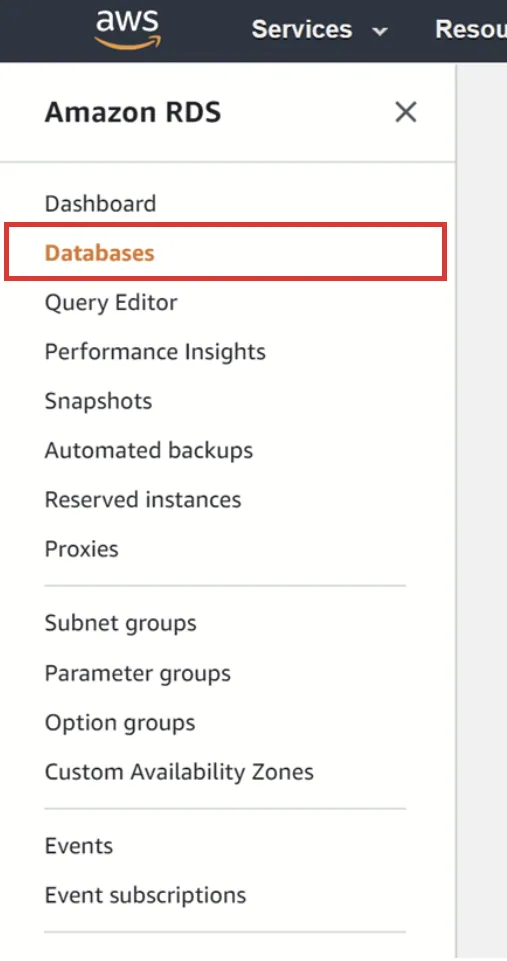
2. In the navigation panel, choose **Databases** to display a list of your DB instances.

<figure>
  <img src="/https/docs.stacksync.com/images/connectors/aws-rds-databases-navigation.webp" alt="Amazon RDS console navigation panel with &#x22;Databases&#x22; highlighted." width="507" height="961" loading="lazy" decoding="async" />

  <figcaption><p>Navigation panel</p></figcaption>
</figure>

3. Click on the DB you want to sync.
4. On the **Connectivity & security tab**, copy the endpoint and the port number.

<figure>
  <img src="/https/docs.stacksync.com/images/connectors/aws-rds-endpoint-and-port.webp" alt="Amazon RDS instance &#x22;mydb&#x22; Connectivity & security tab with the Endpoint and Port 3306 circled." width="589" height="718" loading="lazy" decoding="async" />

  <figcaption><p>RDS endpoint and port number</p></figcaption>
</figure>

5. Then click on the **Configuration** tab and view the **Master username** and **DB name** values.\
   If the DB name is empty as it is the case here, then use **'postgres'** as DB name.\
   The password was set when the database was originally created. Please ask whoever set up the database for the connection password.<br />

<figure>
  <img src="/https/docs.stacksync.com/images/connectors/aws-rds-db-name-master-username.webp" alt="Amazon RDS Configuration tab with DB name, Master username &#x22;postgres&#x22; and Master password fields highlighted." width="590" height="588" loading="lazy" decoding="async" />

  <figcaption />
</figure>

5. Use this template for the connection string and replace the element with your values

```
postgresql://USERNAME:YOUR_PASSWORD@ENDPOINT:PORT/DB_NAME
```

7. Paste the connection string into Stacksync

<figure>
  <img src="/https/docs.stacksync.com/images/connectors/rds-connection-string-field.webp" alt="Stacksync Amazon RDS connection dialog with the &#x22;Connection String&#x22; field highlighted above the individual parameter fields." width="410" height="753" loading="lazy" decoding="async" />

  <figcaption />
</figure>

If your database is in a **private subnet** and doesn't have any way to access it from internet currently, you can set up a jumpbox / bastion host to allow Stacksync to access your database using this tutorial:
<Cards>
  <Card title="Access a Private AWS RDS Instance via a Jumpbox" href="/https/docs.stacksync.com/connectors/setup-options/ssh-tunneling/access-a-private-aws-rds-instance-via-a-jumpbox" />
</Cards>