# Retool

> Authenticate your Retool app and sync data with Stacksync

Source: https://docs.stacksync.com/connectors/postgres/authorize-postgres/retool

## 1. Access your dashboard

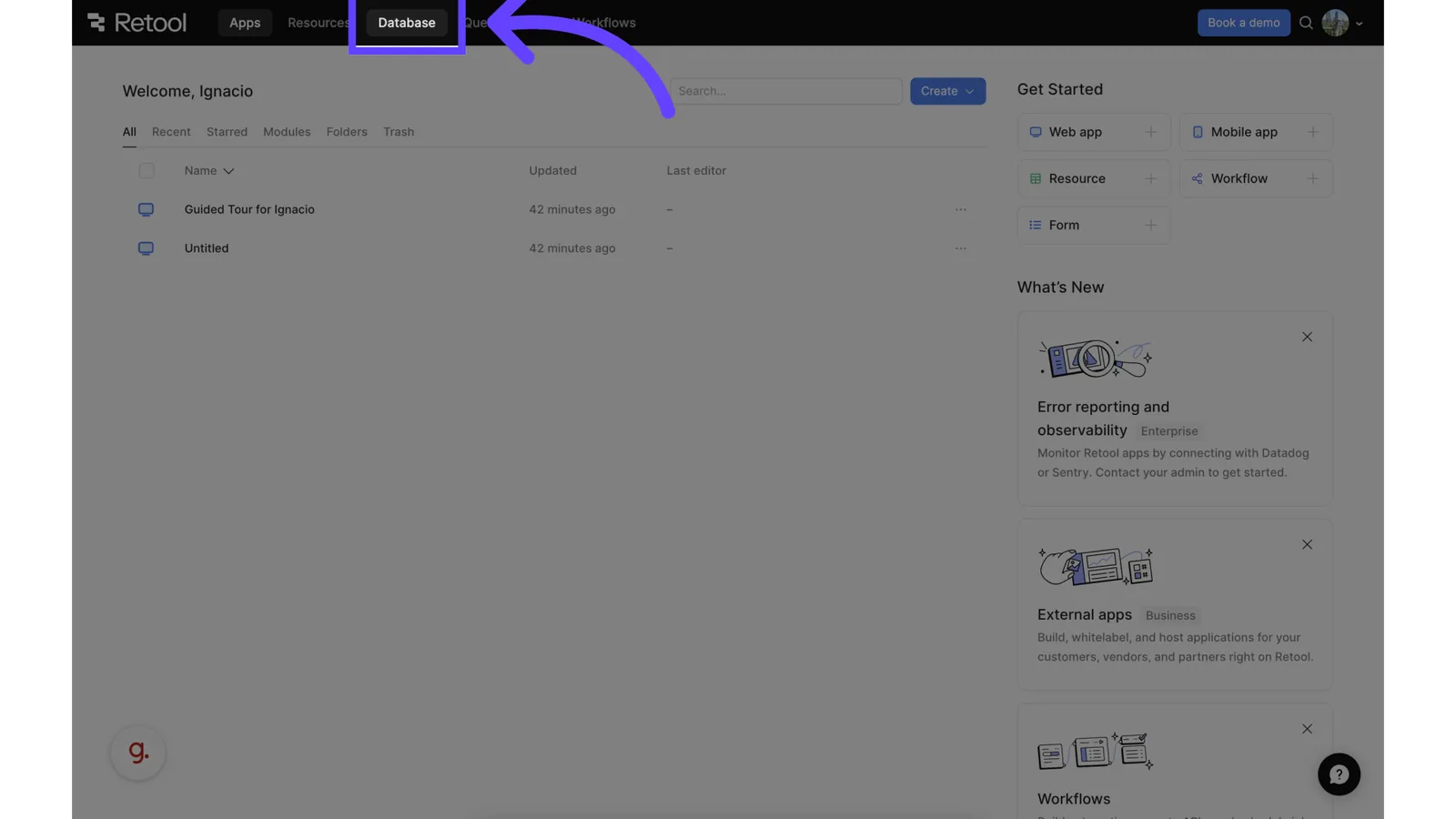
## 2. Click on "Database"

<figure>
  <img src="/https/docs.stacksync.com/images/connectors/retool-database-tab.webp" alt="Retool home page with an arrow pointing to the &#x22;Database&#x22; tab in the top navigation." width="1600" height="900" loading="lazy" decoding="async" />

  <figcaption><p>Click on "Database"</p></figcaption>
</figure>

## 3. Reveal Database Options

<figure>
  <img src="/https/docs.stacksync.com/images/connectors/retool-database-options-dropdown.webp" alt="Retool Database table view with an arrow pointing to the dropdown next to &#x22;Retool Database&#x22; to reveal options." width="1600" height="900" loading="lazy" decoding="async" />

  <figcaption><p>Click and reveal options</p></figcaption>
</figure>

## 4. Click "Connection"

<figure>
  <img src="/https/docs.stacksync.com/images/connectors/retool-database-connection-settings-tab.webp" alt="Retool Database Settings popover with an arrow pointing to the &#x22;Connection&#x22; tab." width="1600" height="900" loading="lazy" decoding="async" />

  <figcaption><p>Click "Connection"</p></figcaption>
</figure>

## 5. Reveal Postgres Connection URL

<figure>
  <img src="/https/docs.stacksync.com/images/connectors/retool-reveal-postgres-connection-url.webp" alt="Retool Database Connection settings with an arrow pointing to the eye icon that reveals the &#x22;Postgres Connection URL&#x22;." width="1600" height="900" loading="lazy" decoding="async" />

  <figcaption><p>Reveal the Connection URL</p></figcaption>
</figure>

## 6. Copy connection URL

<figure>
  <img src="/https/docs.stacksync.com/images/connectors/retool-copy-postgres-connection-url.webp" alt="Retool Database Connection settings with the revealed postgresql:// URL and an arrow pointing to the copy button." width="1600" height="900" loading="lazy" decoding="async" />

  <figcaption><p>Copy the connection URL</p></figcaption>
</figure>

## 7. Get credentials from connection URL

<Callout type="info">
  Retool doesn't give you the port info to connect Postgres via connection URL.
</Callout>

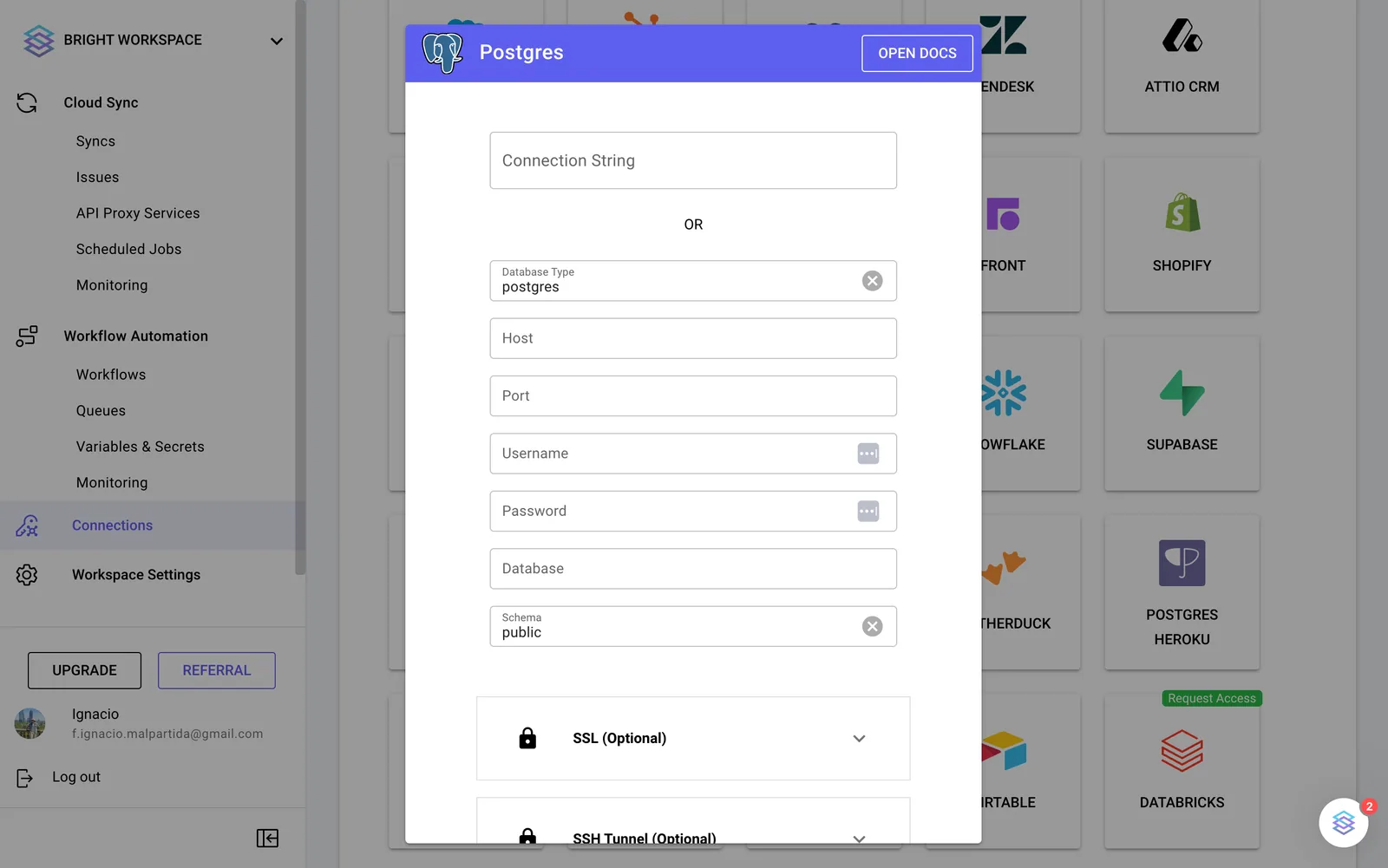
From your connection URL. Manually get the data needed to fill the connection form that will be shown in Step 9.

* **Database Type**
* **Host**
* **Port**
* **Username**
* **Password**
* **Database**
* **Schema**

## 6. Click on "Connections"

<figure>
  <img src="/https/docs.stacksync.com/images/connectors/stacksync-sidebar-connections-menu.webp" alt="Stacksync Syncs page with an arrow pointing to &#x22;Connections&#x22; in the left sidebar." width="1600" height="900" loading="lazy" decoding="async" />

  <figcaption><p>Go to "Connections" on Stacksync</p></figcaption>
</figure>

## 7. Click on "Create New Connection"

<figure>
  <img src="/https/docs.stacksync.com/images/connectors/create-new-connection-button.webp" alt="Stacksync &#x22;My Connections&#x22; page with an arrow pointing to the &#x22;Create New Connection&#x22; button." width="1600" height="900" loading="lazy" decoding="async" />

  <figcaption />
</figure>

## 8. Click "Postgres"

<figure>
  <img src="/https/docs.stacksync.com/images/connectors/select-app-postgres-connector.webp" alt="Stacksync &#x22;Select App&#x22; grid with an arrow pointing to the Postgres connector tile." width="1600" height="900" loading="lazy" decoding="async" />

  <figcaption />
</figure>

## 9. Fill the connection form

<figure>
  <img src="/https/docs.stacksync.com/images/connectors/postgres-connection-form-fields.webp" alt="Stacksync Postgres connection dialog with Connection String or Database Type, Host, Port, Username, Password, Database and Schema fields." width="1600" height="1001" loading="lazy" decoding="async" />

  <figcaption><p>Fill the connection form with all the data from step 7</p></figcaption>
</figure>