Native Stack Navigator
Native Stack Navigator provides a way for your app to transition between screens where each new screen is placed on top of a stack.
This navigator uses the native APIs UINavigationController on iOS and Fragment on Android so that navigation built with createNativeStackNavigator will behave exactly the same and have the same performance characteristics as apps built natively on top of those APIs. It also offers basic Web support using react-native-web.
One thing to keep in mind is that while @react-navigation/native-stack offers native performance and exposes native features such as large title on iOS etc., it may not be as customizable as @react-navigation/stack depending on your needs. So if you need more customization than what's possible in this navigator, consider using @react-navigation/stack instead - which is a more customizable JavaScript based implementation.
Installation
To use this navigator, ensure that you have @react-navigation/native and its dependencies (follow this guide), then install @react-navigation/native-stack:
 npm
npm yarn
yarn pnpm
pnpm bun
bun
npm install @react-navigation/native-stack@next
yarn add @react-navigation/native-stack@next
pnpm add @react-navigation/native-stack@next
bun add @react-navigation/native-stack@next
Usage
To use this navigator, import it from @react-navigation/native-stack:
- Static
- Dynamic
import { createNativeStackNavigator } from '@react-navigation/native-stack';

const MyStack = createNativeStackNavigator({
  screens: {
    Home: HomeScreen,
    Profile: ProfileScreen,
  },
});
import { createNativeStackNavigator } from '@react-navigation/native-stack';

const Stack = createNativeStackNavigator();

function MyStack() {
  return (
    <Stack.Navigator>
      <Stack.Screen name="Home" component={HomeScreen} />
      <Stack.Screen name="Profile" component={ProfileScreen} />
    </Stack.Navigator>
  );
}
If you encounter any bugs while using createNativeStackNavigator, please open issues on react-native-screens rather than the react-navigation repository!
API Definition
Props
The native stack navigator accepts the common props shared by all navigators.
Options
The following options can be used to configure the screens in the navigator:
inactiveBehavior
This controls what should happen when screens become inactive.
It supports the following values:
pause: Effects are cleaned up - e.g. timers are cleared, subscriptions are removed, etc. This avoids unnecessary renders when the screen is inactive.unmount: The screen is unmounted when it becomes inactive.none: Screen renders normally.
Defaults to pause.
If you preload a screen, it won't be paused until after the first time it becomes focused.
If a screen contains a nested navigator, it won't be unmounted, but paused instead.
See Inactive screens for more details.
title
String that can be used as a fallback for headerTitle.
statusBarAnimation
Sets the status bar animation (similar to the StatusBar component). Defaults to fade on iOS and none on Android.
Supported values:
"fade""none""slide"
On Android, setting either fade or slide will set the transition of status bar color. On iOS, this option applies to the appereance animation of the status bar.
Requires setting View controller-based status bar appearance -> YES (or removing the config) in your Info.plist file.
Only supported on Android and iOS.
statusBarHidden
Whether the status bar should be hidden on this screen.
Requires setting View controller-based status bar appearance -> YES (or removing the config) in your Info.plist file.
Only supported on Android and iOS.
statusBarStyle
Sets the status bar color (similar to the StatusBar component).
Supported values:
"auto"(iOS only)"inverted"(iOS only)"dark""light"
Defaults to auto on iOS and light on Android.
Requires setting View controller-based status bar appearance -> YES (or removing the config) in your Info.plist file.
Only supported on Android and iOS.
statusBarBackgroundColor
This option is deprecated and will be removed in a future release (for apps targeting Android SDK 35 or above edge-to-edge mode is enabled by default and it is expected that the edge-to-edge will be enforced in future SDKs, see here for more information).
Sets the background color of the status bar (similar to the StatusBar component).
Only supported on Android.
statusBarTranslucent
This option is deprecated and will be removed in a future release (for apps targeting Android SDK 35 or above edge-to-edge mode is enabled by default and it is expected that the edge-to-edge will be enforced in future SDKs, see here for more information).
Sets the translucency of the status bar (similar to the StatusBar component). Defaults to false.
Only supported on Android.
contentStyle
Style object for the scene content.
animationMatchesGesture
Whether the gesture to dismiss should use animation provided to animation prop. Defaults to false.
Doesn't affect the behavior of screens presented modally.
Only supported on iOS.
fullScreenGestureEnabled
Whether the gesture to dismiss should work on the whole screen. Using gesture to dismiss with this option results in the same transition animation as simple_push. This behavior can be changed by setting customAnimationOnGesture prop. Achieving the default iOS animation isn't possible due to platform limitations. Defaults to false.
Doesn't affect the behavior of screens presented modally.
Only supported on iOS.
fullScreenGestureShadowEnabled
Whether the full screen dismiss gesture has shadow under view during transition. Defaults to true.
This does not affect the behavior of transitions that don't use gestures enabled by fullScreenGestureEnabled prop.
gestureEnabled
Whether you can use gestures to dismiss this screen. Defaults to true. Only supported on iOS.
animationTypeForReplace
The type of animation to use when this screen replaces another screen. Defaults to push.
Supported values:
-
push: the new screen will perform push animation. -
pop: the new screen will perform pop animation.
animation
How the screen should animate when pushed or popped.
Only supported on Android and iOS.
Supported values:
-
default: use the platform default animation -
fade: fade screen in or out -
fade_from_bottom: fade the new screen from bottom -
flip: flip the screen, requirespresentation: "modal"(iOS only) -
simple_push: default animation, but without shadow and native header transition (iOS only, uses default animation on Android) -
slide_from_bottom: slide in the new screen from bottom -
slide_from_right: slide in the new screen from right (Android only, uses default animation on iOS) -
slide_from_left: slide in the new screen from left (Android only, uses default animation on iOS) -
none: don't animate the screen
presentation
How should the screen be presented.
Only supported on Android and iOS.
Supported values:
-
card: the new screen will be pushed onto a stack, which means the default animation will be slide from the side on iOS, the animation on Android will vary depending on the OS version and theme. -
modal: the new screen will be presented modally. this also allows for a nested stack to be rendered inside the screen. -
transparentModal: the new screen will be presented modally, but in addition, the previous screen will stay so that the content below can still be seen if the screen has translucent background. -
containedModal: will use "UIModalPresentationCurrentContext" modal style on iOS and will fallback to "modal" on Android. -
containedTransparentModal: will use "UIModalPresentationOverCurrentContext" modal style on iOS and will fallback to "transparentModal" on Android. -
fullScreenModal: will use "UIModalPresentationFullScreen" modal style on iOS and will fallback to "modal" on Android. A screen using this presentation style can't be dismissed by gesture. -
formSheet: will use "BottomSheetBehavior" on Android and "UIModalPresentationFormSheet" modal style on iOS. See Form Sheets for a detailed guide.
orientation
The display orientation to use for the screen.
Supported values:
default- resolves to "all" without "portrait_down" on iOS. On Android, this lets the system decide the best orientation.all: all orientations are permitted.portrait: portrait orientations are permitted.portrait_up: right-side portrait orientation is permitted.portrait_down: upside-down portrait orientation is permitted.landscape: landscape orientations are permitted.landscape_left: landscape-left orientation is permitted.landscape_right: landscape-right orientation is permitted.
Only supported on Android and iOS.
autoHideHomeIndicator
Boolean indicating whether the home indicator should prefer to stay hidden. Defaults to false.
Only supported on iOS.
gestureDirection
Sets the direction in which you should swipe to dismiss the screen.
Supported values:
vertical– dismiss screen verticallyhorizontal– dismiss screen horizontally (default)
When using vertical option, options fullScreenGestureEnabled: true, customAnimationOnGesture: true and animation: 'slide_from_bottom' are set by default.
Only supported on iOS.
animationDuration
Changes the duration (in milliseconds) of slide_from_bottom, fade_from_bottom, fade and simple_push transitions on iOS. Defaults to 500.
The duration is not customizable for:
- Screens with
defaultandflipanimations - Screens with
presentationset tomodal,formSheet,pageSheet(regardless of animation)
Only supported on iOS.
navigationBarColor
This option is deprecated and will be removed in a future release (for apps targeting Android SDK 35 or above edge-to-edge mode is enabled by default and it is expected that the edge-to-edge will be enforced in future SDKs, see here for more information).
Sets the navigation bar color. Defaults to initial status bar color.
Only supported on Android.
navigationBarHidden
Boolean indicating whether the navigation bar should be hidden. Defaults to false.
Only supported on Android.
freezeOnBlur
Boolean indicating whether to prevent inactive screens from re-rendering. Defaults to false.
Defaults to true when enableFreeze() from react-native-screens package is run at the top of the application.
Only supported on iOS and Android.
scrollEdgeEffects
Configures the scroll edge effect for the content ScrollView (the ScrollView that is present in first descendants chain of the Screen). Depending on values set, it will blur the scrolling content below certain UI elements (e.g. header items, search bar) for the specified edge of the ScrollView. When set in nested containers, i.e. Native Stack inside Native Bottom Tabs, or the other way around, the ScrollView will use only the innermost one's config.
Edge effects can be configured for each edge separately. The following values are currently supported:
automatic- the automatic scroll edge effect style,hard- a scroll edge effect with a hard cutoff and dividing line,soft- a soft-edged scroll edge effect,hidden- no scroll edge effect.
Defaults to automatic for each edge.
Using both blurEffect and scrollEdgeEffects (>= iOS 26) simultaneously may cause overlapping effects.
Only supported on iOS, starting from iOS 26.
Form sheet options
The following options only work when presentation is set to formSheet. See Form Sheets for a detailed usage guide.
sheetAllowedDetents
Describes heights where a sheet can rest.
Supported values: 'fitToContents' or an array of fractions (e.g. [0.25, 0.5, 0.75]). The array must be sorted in ascending order. This invariant is verified only in development mode, where violation results in an error. Android is limited to 3 detents.
Defaults to [1.0]. Only supported on Android and iOS.
See Configuring sheet sizes for usage examples.
sheetElevation
Integer value describing elevation of the sheet, impacting shadow on the top edge.
Not dynamic - changing it after the component is rendered won't have an effect.
Defaults to 24. Only supported on Android.
sheetExpandsWhenScrolledToEdge
Whether the sheet should expand to a larger detent when scrolling.
The ScrollView must be reachable by following the first child view at each level of the view hierarchy from the screen component.
Defaults to true. Only supported on iOS.
See Scroll behavior for more details.
sheetCornerRadius
The corner radius of the sheet. If set to a non-negative value it will use the provided radius, otherwise the system default is used.
Only supported on Android and iOS.
sheetInitialDetentIndex
Index of the detent the sheet should expand to after being opened. If the specified index is out of bounds of the sheetAllowedDetents array, an error will be thrown in development mode and the value will be reset to the default in production.
Can also be set to 'last' to open at the largest detent.
Defaults to 0. Only supported on Android and iOS.
See Configuring sheet sizes for usage examples.
sheetGrabberVisible
Whether the sheet shows a grabber handle at the top.
Defaults to false. Only supported on iOS.
sheetLargestUndimmedDetentIndex
The largest detent index for which the view underneath won't be dimmed.
Can be set to a number (index into sheetAllowedDetents), 'none' (always dim), or 'last' (never dim).
Defaults to 'none'. Only supported on Android and iOS.
See Controlling dimming for usage examples.
sheetShouldOverflowTopInset
Whether the sheet content should be rendered behind the status bar or display cutouts.
When true, detent ratios in sheetAllowedDetents are measured relative to the full stack height. When false, they are measured relative to the adjusted height (excluding the top inset).
Defaults to false. Only supported on Android.
sheetResizeAnimationEnabled
Whether the default native animation should be used when the sheet's content size changes (specifically when using fitToContents).
Set to false to implement custom resizing animations.
Defaults to true. Only supported on Android.
Header related options
The navigator supports following options to configure the header:
headerBackButtonMenuEnabled
Boolean indicating whether to show the menu on longPress of iOS >= 14 back button. Defaults to true.
Only supported on iOS.
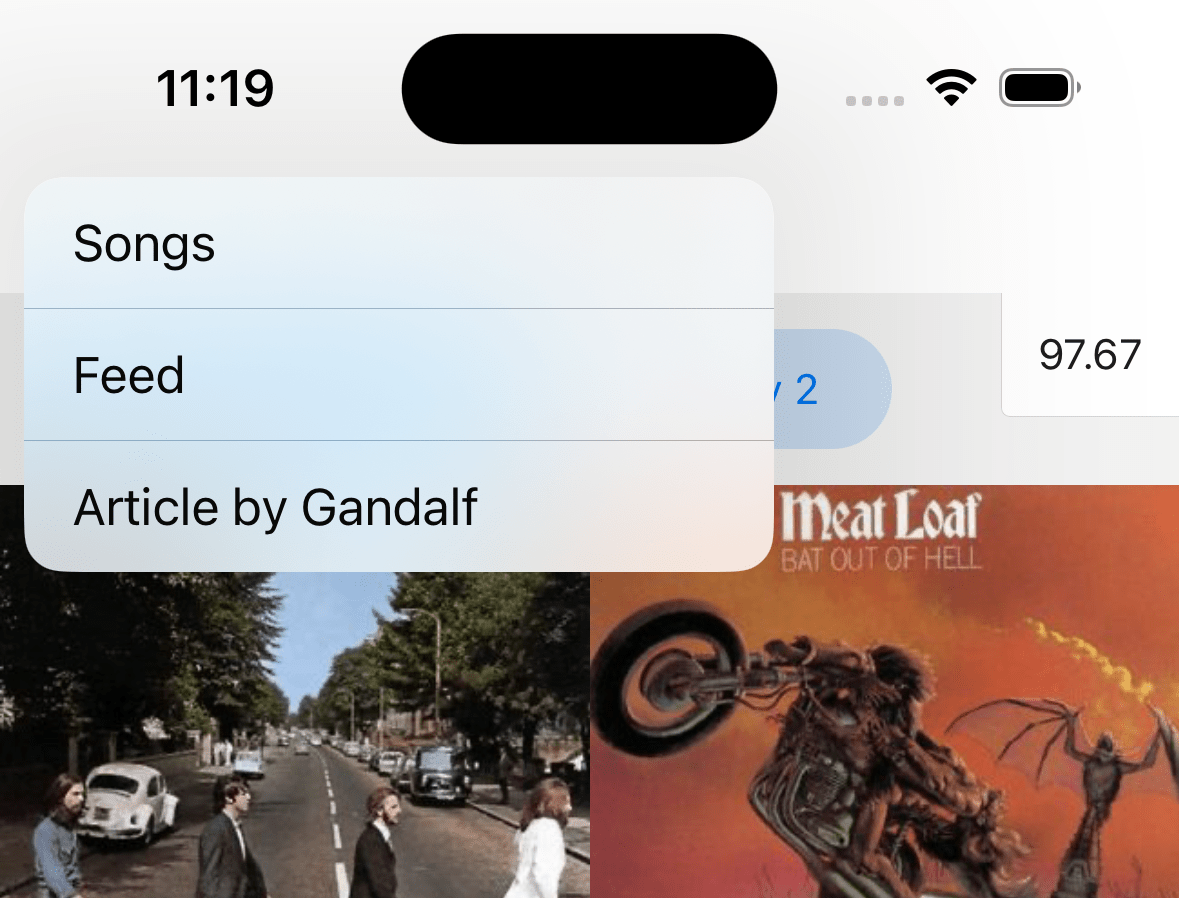
headerBackVisible
Whether the back button is visible in the header. You can use it to show a back button alongside headerLeft if you have specified it.
This will have no effect on the first screen in the stack.
headerBackTitle
Title string used by the back button on iOS. Defaults to the previous scene's title, "Back" or arrow icon depending on the available space. See headerBackButtonDisplayMode to read about limitations and customize the behavior.
Use headerBackButtonDisplayMode: "minimal" to hide it.
Only supported on iOS.

headerBackButtonDisplayMode
How the back button displays icon and title.
Supported values:
- "default" - Displays one of the following depending on the available space: previous screen's title, generic title (e.g. 'Back') or no title (only icon).
- "generic" – Displays one of the following depending on the available space: generic title (e.g. 'Back') or no title (only icon).
- "minimal" – Always displays only the icon without a title.
The space-aware behavior is disabled when:
- The iOS version is 13 or lower
- Custom font family or size is set (e.g. with
headerBackTitleStyle) - Back button menu is disabled (e.g. with
headerBackButtonMenuEnabled)
In such cases, a static title and icon are always displayed.
Only supported on iOS.
headerBackTitleStyle
Style object for header back title. Supported properties:
fontFamilyfontSize
Only supported on iOS.

Example:
headerBackTitleStyle: {
  fontSize: 14,
  fontFamily: 'Georgia',
},
headerBackIcon
Icon to display in the header as the icon in the back button.
It supports the following types:
-
materialSymbol(Android only)headerBackIcon: {
type: 'materialSymbol',
name: 'arrow_back',
}See Icons for more details.
-
sfSymbol(iOS only)headerBackIcon: {
type: 'sfSymbol',
name: 'arrow.left',
}See Icons for more details.
This is only supported when using
Headerfrom@react-navigation/elementsas the header component. The native header doesn't support SF Symbols. -
imageheaderBackIcon: {
type: 'image',
source: require('./path/to/icon.png'),
}
Defaults to back icon image for the platform:
- A chevron on iOS
- An arrow on Android
headerLargeStyle
Style of the header when a large title is shown. The large title is shown if headerLargeTitleEnabled is true and the edge of any scrollable content reaches the matching edge of the header.
Supported properties:
- backgroundColor
Only supported on iOS.
headerLargeTitleEnabled
Whether to enable header with large title which collapses to regular header on scroll.
Defaults to false.
For large title to collapse on scroll, the content of the screen should be wrapped in a scrollable view such as ScrollView or FlatList. If the scrollable area doesn't fill the screen, the large title won't collapse on scroll. You also need to specify contentInsetAdjustmentBehavior="automatic" in your ScrollView, FlatList etc.
Only supported on iOS.
headerLargeTitleShadowVisible
Whether drop shadow of header is visible when a large title is shown.
headerLargeTitleStyle
Style object for large title in header. Supported properties:
fontFamilyfontSizefontWeightcolor
Only supported on iOS.

Example:
    headerLargeTitleStyle: {
      fontFamily: 'Georgia',
      fontSize: 22,
      fontWeight: '500',
      color: 'blue',
    },
headerStyle
Style object for header. Supported properties:
backgroundColor
headerShadowVisible
Whether to hide the elevation shadow (Android) or the bottom border (iOS) on the header.
Android:

iOS:

headerTransparent
Boolean indicating whether the navigation bar is translucent.
Defaults to false. Setting this to true makes the header absolutely positioned - so that the header floats over the screen so that it overlaps the content underneath, and changes the background color to transparent unless specified in headerStyle.
This is useful if you want to render a semi-transparent header or a blurred background.
Note that if you don't want your content to appear under the header, you need to manually add a top margin to your content. React Navigation won't do it automatically.
To get the height of the header, you can use HeaderHeightContext with React's Context API or useHeaderHeight.
headerBlurEffect
Blur effect for the translucent header. The headerTransparent option needs to be set to true for this to work.
Supported values:
-
extraLight -
light
-
dark
-
regular
-
prominent
-
systemUltraThinMaterial
-
systemThinMaterial
-
systemMaterial
-
systemThickMaterial
-
systemChromeMaterial
-
systemUltraThinMaterialLight
-
systemThinMaterialLight
-
systemMaterialLight
-
systemThickMaterialLight
-
systemChromeMaterialLight
-
systemUltraThinMaterialDark
-
systemThinMaterialDark
-
systemMaterialDark
-
systemThickMaterialDark
-
systemChromeMaterialDark
Using both headerBlurEffect and scrollEdgeEffects (>= iOS 26) simultaneously may cause overlapping effects.
Only supported on iOS.
headerBackground
Function which returns a React Element to render as the background of the header. This is useful for using backgrounds such as an image or a gradient.

Example:
     headerBackground: () => (
      <LinearGradient
        colors={['#c17388', '#90306f']}
        style={{ flex: 1 }}
        start={{ x: 0, y: 0 }}
        end={{ x: 1, y: 0 }}
      />
      ),
headerTintColor
Tint color for the header. Changes the color of back button and title.

headerLeft
Function which returns a React Element to display on the left side of the header. This replaces the back button. See headerBackVisible to show the back button along side left element. It receives the following properties in the arguments:
tintColor- The tint color to apply. Defaults to the theme's primary color.canGoBack- Boolean indicating whether there is a screen to go back to.label- Label text for the button. Usually the title of the previous screen.href- Thehrefto use for the anchor tag on web

Example:
    headerLeft: () => (
      <MaterialCommunityIcons name="map" color="gray" size={36} />
    ),
    headerBackVisible: true,
    headerBackTitle: 'Back',
headerLeftBackgroundVisible
Whether the liquid glass background is visible for the item.
Only supported on iOS 26.0 and later. Older versions of iOS and other platforms never show the background.
Defaults to true.
unstable_headerLeftItems
This option is experimental and may change in a minor release.
Function which returns an array of items to display as on the left side of the header. This will override headerLeft if both are specified. It receives the following properties in the arguments:
tintColor- The tint color to apply. Defaults to the theme's primary color.canGoBack- Boolean indicating whether there is a screen to go back to.
Example:
unstable_headerLeftItems: () => [
  {
    type: 'button',
    title: 'Edit',
    onPress: () => {
      // Do something
    },
  },
],
See Header items for more information.
Only supported on iOS.
headerRight
Function which returns a React Element to display on the right side of the header. It receives the following properties in the arguments:
-
tintColor- The tint color to apply. Defaults to the theme's primary color. -
canGoBack- Boolean indicating whether there is a screen to go back to.
Example:
headerRight: () => <MaterialCommunityIcons name="map" color="blue" size={36} />;
headerRightBackgroundVisible
Whether the liquid glass background is visible for the item.
Only supported on iOS 26.0 and later. Older versions of iOS and other platforms never show the background.\
Defaults to true.
unstable_headerRightItems
This option is experimental and may change in a minor release.
Function which returns an array of items to display as on the right side of the header. This will override headerRight if both are specified. It receives the following properties in the arguments:
tintColor- The tint color to apply. Defaults to the theme's primary color.canGoBack- Boolean indicating whether there is a screen to go back to.
Example:
unstable_headerRightItems: () => [
  {
    type: 'button',
    title: 'Edit',
    onPress: () => {
      // Do something
    },
  },
],
See Header items for more information.
Only supported on iOS.
headerTitle
String or a function that returns a React Element to be used by the header. Defaults to title or name of the screen.
When a function is passed, it receives tintColor andchildren in the options object as an argument. The title string is passed in children.
Note that if you render a custom element by passing a function, animations for the title won't work.
headerTitleAlign
How to align the header title. Possible values:
-
left
-
center
Defaults to left on platforms other than iOS.
Not supported on iOS. It's always center on iOS and cannot be changed.
headerTitleStyle
Style object for header title. Supported properties:
-
fontFamily -
fontSize -
fontWeight -
color
Example:
    headerTitleStyle: {
      color: 'blue',
      fontSize: 22,
      fontFamily: 'Georgia',
      fontWeight: 300,
    },
headerSearchBarOptions
Options to render a native search bar. Search bars are rarely static so normally it is controlled by passing an object to headerSearchBarOptions navigation option in the component's body.
On iOS, you also need to specify contentInsetAdjustmentBehavior="automatic" in your ScrollView, FlatList etc. If you don't have a ScrollView, specify headerTransparent: false.
Example:
React.useLayoutEffect(() => {
  navigation.setOptions({
    headerSearchBarOptions: {
      // search bar options
    },
  });
}, [navigation]);
Supported properties are:
ref
Ref to manipulate the search input imperatively. It contains the following methods:
focus- focuses the search barblur- removes focus from the search barsetText- sets the search bar's content to given valueclearText- removes any text present in the search bar input fieldcancelSearch- cancel the search and close the search bartoggleCancelButton- depending on passed boolean value, hides or shows cancel button (only supported on iOS)
autoCapitalize
Controls whether the text is automatically auto-capitalized as it is entered by the user. Possible values:
systemDefaultnonewordssentencescharacters
Defaults to systemDefault which is the same as sentences on iOS and none on Android.
autoFocus
Whether to automatically focus search bar when it's shown. Defaults to false.
Only supported on Android.
barTintColor
The search field background color. By default bar tint color is translucent.
Only supported on iOS.

tintColor
The color for the cursor caret and cancel button text.
Only supported on iOS.

cancelButtonText
The text to be used instead of default Cancel button text.
Only supported on iOS. Deprecated starting from iOS 26.
disableBackButtonOverride
Whether the back button should close search bar's text input or not. Defaults to false.
Only supported on Android.
hideNavigationBar
Boolean indicating whether to hide the navigation bar during searching.
If left unset, system default is used.
Only supported on iOS.
hideWhenScrolling
Boolean indicating whether to hide the search bar when scrolling. Defaults to true.
Only supported on iOS.
inputType
The type of the input. Defaults to "text".
Supported values:
"text""phone""number""email"
Only supported on Android.
obscureBackground
Boolean indicating whether to obscure the underlying content with semi-transparent overlay.
If left unset, system default is used.
Only supported on iOS.
placement
Controls preferred placement of the search bar. Defaults to automatic.
Supported values:
automaticstackedinline(deprecated starting from iOS 26, it is mapped tointegrated)integrated(available starting from iOS 26, on prior versions it is mapped toinline)integratedButton(available starting from iOS 26, on prior versions it is mapped toinline)integratedCentered(available starting from iOS 26, on prior versions it is mapped toinline)
Only supported on iOS.
allowToolbarIntegration
Boolean indicating whether the system can place the search bar among other toolbar items on iPhone.
Set this prop to false to prevent the search bar from appearing in the toolbar when placement is automatic, integrated, integratedButton or integratedCentered.
Defaults to true. If placement is set to stacked, the value of this prop will be overridden with false.
Only supported on iOS, starting from iOS 26.
placeholder
Text displayed when search field is empty.
textColor
The color of the text in the search field.

hintTextColor
The color of the hint text in the search field.
Only supported on Android.

headerIconColor
The color of the search and close icons shown in the header
Only supported on Android.

shouldShowHintSearchIcon
Whether to show the search hint icon when search bar is focused. Defaults to true.
Only supported on Android.
onBlur
A callback that gets called when search bar has lost focus.
onCancelButtonPress
A callback that gets called when the cancel button is pressed.
onSearchButtonPress
A callback that gets called when the search button is pressed.
const [search, setSearch] = React.useState('');

React.useLayoutEffect(() => {
  navigation.setOptions({
    headerSearchBarOptions: {
      onSearchButtonPress: (event) => setSearch(event?.nativeEvent?.text),
    },
  });
}, [navigation]);
onChange
A callback that gets called when the text changes. It receives en event containing the current text value of the search bar.
Example:
const [search, setSearch] = React.useState('');

React.useLayoutEffect(() => {
  navigation.setOptions({
    headerSearchBarOptions: {
      onChange: (event) => setSearch(event.nativeEvent.text),
    },
  });
}, [navigation]);
headerShown
Whether to show the header. The header is shown by default. Setting this to false hides the header.
header
Custom header to use instead of the default header.
This accepts a function that returns a React Element to display as a header. The function receives an object containing the following properties as the argument:
navigation- The navigation object for the current screen.route- The route object for the current screen.options- The options for the current screenback- Options for the back button, contains an object with atitleproperty to use for back button label.
Example:
import { getHeaderTitle } from '@react-navigation/elements';

// ..

header: ({ navigation, route, options, back }) => {
  const title = getHeaderTitle(options, route.name);

  return (
    <MyHeader
      title={title}
      leftButton={
        back ? <MyBackButton onPress={navigation.goBack} /> : undefined
      }
      style={options.headerStyle}
    />
  );
};
To set a custom header for all the screens in the navigator, you can specify this option in the screenOptions prop of the navigator.
Also see icons documentation to use system icons such as SF Symbols and Material Design Icons in your custom header.
Note that if you specify a custom header, the native functionality such as large title, search bar etc. won't work.
Events
The navigator can emit events on certain actions. Supported events are:
transitionStart
This event is fired when the transition animation starts for the current screen.
Event data:
e.data.closing- Boolean indicating whether the screen is being opened or closed.
Example:
React.useEffect(() => {
  const unsubscribe = navigation.addListener('transitionStart', (e) => {
    // Do something
  });

  return unsubscribe;
}, [navigation]);
transitionEnd
This event is fired when the transition animation ends for the current screen.
Event data:
e.data.closing- Boolean indicating whether the screen was opened or closed.
Example:
React.useEffect(() => {
  const unsubscribe = navigation.addListener('transitionEnd', (e) => {
    // Do something
  });

  return unsubscribe;
}, [navigation]);
gestureCancel
This event is fired when the swipe back gesture is canceled. Only supported on iOS.
Example:
React.useEffect(() => {
  const unsubscribe = navigation.addListener('gestureCancel', (e) => {
    // Do something
  });

  return unsubscribe;
}, [navigation]);
sheetDetentChange
This event is fired when the screen has presentation set to formSheet and the sheet detent changes.
Event data:
e.data.index- Index of the current detent in thesheetAllowedDetentsarray.e.data.stable- Boolean indicating whether the sheet is being dragged or settling. Only supported on Android. On iOS, this is alwaystrue.
Example:
React.useEffect(() => {
  const unsubscribe = navigation.addListener('sheetDetentChange', (e) => {
    // Do something
  });

  return unsubscribe;
}, [navigation]);
Helpers
The native stack navigator adds the following methods to the navigation object:
replace
Replaces the current screen with a new screen in the stack. The method accepts the following arguments:
name- string - Name of the route to push onto the stack.params- object - Screen params to pass to the destination route.
navigation.replace('Profile', { owner: 'Michaś' });
push
Pushes a new screen to the top of the stack and navigate to it. The method accepts the following arguments:
name- string - Name of the route to push onto the stack.params- object - Screen params to pass to the destination route.
navigation.push('Profile', { owner: 'Michaś' });
pop
Pops the current screen from the stack and navigates back to the previous screen. It takes one optional argument (count), which allows you to specify how many screens to pop back by.
navigation.pop();
popTo
Navigates back to a previous screen in the stack by popping screens after it. The method accepts the following arguments:
name- string - Name of the route to navigate to.params- object - Screen params to pass to the destination route.options- Options object containing the following properties:merge- boolean - Whether params should be merged with the existing route params, or replace them (when navigating to an existing screen). Defaults tofalse.
If a matching screen is not found in the stack, this will pop the current screen and add a new screen with the specified name and params.
navigation.popTo('Profile', { owner: 'Michaś' });
If getId is specified for the screen, popTo will match the screen by id instead of name.
popToTop
Pops all of the screens in the stack except the first one and navigates to it.
navigation.popToTop();
Hooks
The native stack navigator exports the following hooks:
useAnimatedHeaderHeight
The hook returns an animated value representing the height of the header. This is similar to useHeaderHeight but returns an animated value that changed as the header height changes, e.g. when expanding or collapsing large title or search bar on iOS.
It can be used to animated content along with header height changes.
import { Animated } from 'react-native';
import { useAnimatedHeaderHeight } from '@react-navigation/native-stack';

const MyView = () => {
  const headerHeight = useAnimatedHeaderHeight();

  return (
    <Animated.View
      style={{
        height: 100,
        aspectRatio: 1,
        backgroundColor: 'tomato',
        transform: [{ translateY: headerHeight }],
      }}
    />
  );
};
Form sheets
Form sheets present content in a sheet that slides up from the bottom of the screen. They are commonly used for secondary actions, forms, or detail views that don't need to take over the full screen.
To present a screen as a form sheet, set presentation to formSheet in the screen's options:
- Static
- Dynamic
import { createNativeStackNavigator } from '@react-navigation/native-stack';

const MyStack = createNativeStackNavigator({
  screens: {
    Home: {
      screen: HomeScreen,
    },
    Profile: {
      screen: ProfileScreen,
      options: {
        presentation: 'formSheet',
        headerShown: false,
        sheetAllowedDetents: 'fitToContents',
      },
    },
  },
});
import { createNativeStackNavigator } from '@react-navigation/native-stack';

const Stack = createNativeStackNavigator();

function MyStack() {
  return (
    <Stack.Navigator>
      <Stack.Screen name="Home" component={HomeScreen} />
      <Stack.Screen
        name="Profile"
        component={ProfileScreen}
        options={{
          presentation: 'formSheet',
          headerShown: false,
          sheetAllowedDetents: 'fitToContents',
        }}
      />
    </Stack.Navigator>
  );
}
Configuring sheet sizes
By default, a form sheet takes up the full screen height. You can customize the heights at which the sheet can rest using the sheetAllowedDetents option:
-
Use
'fitToContents'to size the sheet based on its content:{
presentation: 'formSheet',
sheetAllowedDetents: 'fitToContents',
} -
Use an array of fractions to define specific heights as a fraction of the screen height. For example, to allow the sheet to rest at 25% and 75% of the screen:
{
  presentation: 'formSheet',
  sheetAllowedDetents: [0.25, 0.75],
}warningThe array must be sorted in ascending order. On Android, only up to 3 detents are supported - any additional values are ignored.
To control which detent the sheet opens at, use sheetInitialDetentIndex. By default, it opens at the first (smallest) detent:
{
  presentation: 'formSheet',
  sheetAllowedDetents: [0.25, 0.5, 1],
  // Open at 50% height initially
  sheetInitialDetentIndex: 1,
}
You can also use 'last' to open at the largest detent.
Listening to detent changes
You can listen to the sheetDetentChange event to know when the user drags the sheet to a different detent:
navigation.addListener('sheetDetentChange', (e) => {
  console.log('New detent index:', e.data.index);
  console.log('Is stable:', e.data.stable);
});
Customizing appearance
Grabber
On iOS, you can show a grabber handle at the top of the sheet using sheetGrabberVisible:
{
  presentation: 'formSheet',
  sheetGrabberVisible: true,
}
Corner radius
Customize the corner radius of the sheet with sheetCornerRadius. If not set, the system default is used:
{
  presentation: 'formSheet',
  sheetCornerRadius: 20,
}
Elevation (Android)
On Android, control the sheet's shadow with sheetElevation (defaults to 24):
{
  presentation: 'formSheet',
  sheetElevation: 10,
}
Background color
If the content's height is less than the sheet's height, the remaining area may appear translucent or use the default theme background. To fix this, set backgroundColor in the contentStyle option:
{
  presentation: 'formSheet',
  contentStyle: {
    backgroundColor: 'white',
  },
}
Controlling dimming
By default, a dimmed overlay appears behind the sheet. Use sheetLargestUndimmedDetentIndex to control when dimming is applied:
'none'(default) - always show the dimming overlay.'last'- never show the dimming overlay.- A number - the index of the largest detent that should not have dimming. The dimming overlay is shown when the sheet is at a larger detent.
For example, to only dim when the sheet is above the first detent:
{
  presentation: 'formSheet',
  sheetAllowedDetents: [0.25, 0.5, 1],
  // No dimming at 25%, dimming at 50% and 100%
  sheetLargestUndimmedDetentIndex: 0,
}
On iOS, the native implementation may resize the sheet without explicitly changing the detent level (e.g. when the keyboard appears). If the sheet exceeds the height for which a dimming view would normally be applied, the dimming view will appear even if the detent hasn't changed.
Scroll behavior
By default on iOS, scrolling inside the sheet can expand it to a larger detent. Control this with sheetExpandsWhenScrolledToEdge:
{
  presentation: 'formSheet',
  sheetAllowedDetents: [0.5, 1],
  // Prevent scroll from expanding the sheet
  sheetExpandsWhenScrolledToEdge: false,
}
For this interaction to work, the ScrollView must be reachable by following the first child view at each level of the view hierarchy from the screen component. This is a platform requirement.
Platform considerations
flex: 1 limitations
Due to platform component integration issues with react-native, presentation: 'formSheet' has limited support for flex: 1:
- Android: Using
flex: 1on a top-level content container withsheetAllowedDetents: 'fitToContents'causes the sheet to not display at all, leaving only the dimmed background visible. This is because the sheet, not the parent, is the source of the size. Use fixed detent values (e.g.[0.4, 0.9]) instead. - iOS:
flex: 1with'fitToContents'works properly, but setting fixed detent values causes the content to not fill the sheet height - it inherits the intrinsic size of its contents instead. This tradeoff is currently necessary to prevent the "sheet flickering" problem on iOS.
If the content's height is less than the sheet's height, the remaining area may appear translucent or use the default theme background color. To fix this, set backgroundColor in the contentStyle option.
Android-specific limitations
- Nested stack navigators and
headerShownare not currently supported inside form sheet screens. - Nested
ScrollViewcomponents neednestedScrollEnabledset totrue, but this does not work if the content's height is less than theScrollView's height. See this PR for details and a suggested workaround.
Header items
The unstable_headerLeftItems and unstable_headerRightItems options allow you to add header items to the left and right side of the header respectively. This items can show native buttons, menus or custom React elements.
On iOS 26+, the header right items can also be collapsed into an overflow menu by the system when there is not enough space to show all items. Note that custom elements (with type: 'custom') won't be collapsed into the overflow menu.


There are 3 categories of items that can be displayed in the header:
Action
A regular button that performs an action when pressed, or shows a menu.
Common properties:
-
type: Must bebuttonormenu. -
label: Label of the item. The label is not shown ificonis specified. However, it is used by screen readers, or if the header items get collapsed due to lack of space. -
labelStyle: Style object for the label. Supported properties:fontFamilyfontSizefontWeightcolor
-
icon: Optional icon to show instead of the label.The icon can be of following types:
-
Local image
tabBarIcon: {
  type: 'image',
  source: require('./path/to/icon.png'),
}
It's necessary to provide icons for multiple screen densities (1x, 2x, 3x), e.g.:
icon.png,[email protected],[email protected]etc. as icons are not scaled automatically.It also supports xcasset:
tabBarIcon: {
  type: 'image',
  source: { uri: 'icon_name' },
}
A
tintedproperty can be used to control whether the icon should be tinted with the active/inactive color:tabBarIcon: {
type: 'image',
source: require('./path/to/icon.png'),
tinted: false,
}Set
tintedtofalseif the image has its own colors that you want to preserve. -
SF Symbols name
{
  type: 'sfSymbol',
  name: 'heart',
}
-
-
variant: Visual variant of the button. Supported values:plain(default)doneprominent(iOS 26+)
-
tintColor: Tint color to apply to the item. -
disabled: Whether the item is disabled. -
width: Width of the item. -
hidesSharedBackground(iOS 26+): Whether the background this item may share with other items in the bar should be hidden. Setting this totruehides the liquid glass background. -
sharesBackground(iOS 26+): Whether this item can share a background with other items. Defaults totrue. -
identifier(iOS 26+) - An identifier used to match items across transitions. -
badge(iOS 26+): An optional badge to display alongside the item. Supported properties:value: The value to display in the badge. It can be a string or a number.style: Style object for the badge. Supported properties:fontFamilyfontSizefontWeightcolorbackgroundColor
-
accessibilityLabel: Accessibility label for the item. -
accessibilityHint: Accessibility hint for the item.
Supported properties when type is button:
onPress: Function to call when the button is pressed.selected: Whether the button is in a selected state.
Example:
unstable_headerRightItems: () => [
  {
    type: 'button',
    label: 'Edit',
    icon: {
      type: 'sfSymbol',
      name: 'pencil',
    },
    onPress: () => {
      // Do something
    },
  },
],
Supported properties when type is menu:
changesSelectionAsPrimaryAction: Whether the menu is a selection menu. Tapping an item in a selection menu will add a checkmark to the selected item. Defaults tofalse.menu: An object containing the menu items. It contains the following properties:title: Optional title to show on top of the menu.multiselectable: Whether multiple items in the menu can be selected (i.e. in "on" state). Defaults tofalse.layout: How the menu items are displayed. Supported values:default(default): menu items are displayed normally.palette: menu items are displayed in a horizontal row.
items: An array of menu items. A menu item can be either anactionor asubmenu.-
action: An object with the following properties:-
type: Must beaction. -
label: Label of the menu item. -
description: The secondary text displayed alongside the label of the menu item. -
icon: Optional icon to show alongside the label. The icon can be a SF Symbols name:{
type: 'sfSymbol',
name: 'trash',
} -
onPress: Function to call when the menu item is pressed. -
state: Optional state of the menu item. Supported values:onoffmixed
-
disabled: Whether the menu item is disabled. -
destructive: Whether the menu item is styled as destructive. -
hidden: Whether the menu item is hidden. -
keepsMenuPresented: Whether to keep the menu open after selecting this item. Defaults tofalse. -
discoverabilityLabel: An elaborated title that explains the purpose of the action. On iOS, the system displays this title in the discoverability heads-up display (HUD). If this is not set, the HUD displays the label property.
-
-
submenu: An object with the following properties:-
type: Must besubmenu. -
label: Label of the submenu item. -
icon: Optional icon to show alongside the label. The icon can be a SF Symbols name:{
type: 'sfSymbol',
name: 'pencil',
} -
inline: Whether the menu is displayed inline with the parent menu. By default, submenus are displayed after expanding the parent menu item. Inline menus are displayed as part of the parent menu as a section. Defaults tofalse. -
layout: How the submenu items are displayed. Supported values:default(default): menu items are displayed normally.palette: menu items are displayed in a horizontal row.
-
destructive: Whether the submenu is styled as destructive. -
multiselectable: Whether multiple items in the submenu can be selected (i.e. in "on" state). Defaults tofalse. -
items: An array of menu items (can be eitheractionorsubmenu).
-
-
Example:
unstable_headerRightItems: () => [
  {
    type: 'menu',
    label: 'Options',
    icon: {
      type: 'sfSymbol',
      name: 'ellipsis',
    },
    menu: {
      title: 'Options',
      items: [
        {
          type: 'action',
          label: 'Edit',
          icon: {
            type: 'sfSymbol',
            name: 'pencil',
          },
          onPress: () => {
            // Do something
          },
        },
        {
          type: 'submenu',
          label: 'More',
          items: [
            {
              type: 'action',
              label: 'Delete',
              destructive: true,
              onPress: () => {
                // Do something
              },
            },
          ],
        },
      ],
    },
  },
],
Spacing
An item to add spacing between other items in the header.
Supported properties:
type: Must bespacing.spacing: Amount of spacing to add.
unstable_headerRightItems: () => [
  {
    type: 'button',
    label: 'Edit',
    onPress: () => {
      // Do something
    },
  },
  {
    type: 'spacing',
    spacing: 10,
  },
  {
    type: 'button',
    label: 'Delete',
    onPress: () => {
      // Do something
    },
  },
],
Custom
A custom item to display any React Element in the header.
Supported properties:
type: Must becustom.element: A React Element to display as the item.hidesSharedBackground: Whether the background this item may share with other items in the bar should be hidden. Setting this totruehides the liquid glass background on iOS 26+.
Example:
unstable_headerRightItems: () => [
  {
    type: 'custom',
    element: <MaterialCommunityIcons name="map" color="gray" size={36} />,
  },
],
The advantage of using this over headerLeft or headerRight options is that it supports features like shared background on iOS 26+.